The clipboard
Notes scrawled at the wall, a sketch squeezed into the margin, and a page you have to decipher back at the truck. Half of what you noticed never makes it to the estimate.
Coming soon: Job Organizer is heading toward release — including hands-free Siri integration and drawing right on your job photos. See what's next
iPhone · In field testing now
Built for the small contractor doing it all — the estimates, the notes, the follow-up. Job Organizer turns the way you already work — a photo of every area and a running commentary — into organized notes, tagged photos, and a clean estimate your client can read before you get back to the truck.
The reason this exists
This app was designed with a contractor who has been in business for thirty years. It solves his actual complaints, in his actual order.
Notes scrawled at the wall, a sketch squeezed into the margin, and a page you have to decipher back at the truck. Half of what you noticed never makes it to the estimate.
Hundreds of job photos buried in your phone, with nothing to tell you which house, which room, or which year. Finding the one you need takes longer than driving back.
Priced for a forty-person outfit, built for an office manager, and it wants a week of setup before it does anything. He looked at all of it. It was way too complex.
Built in, not bolted on
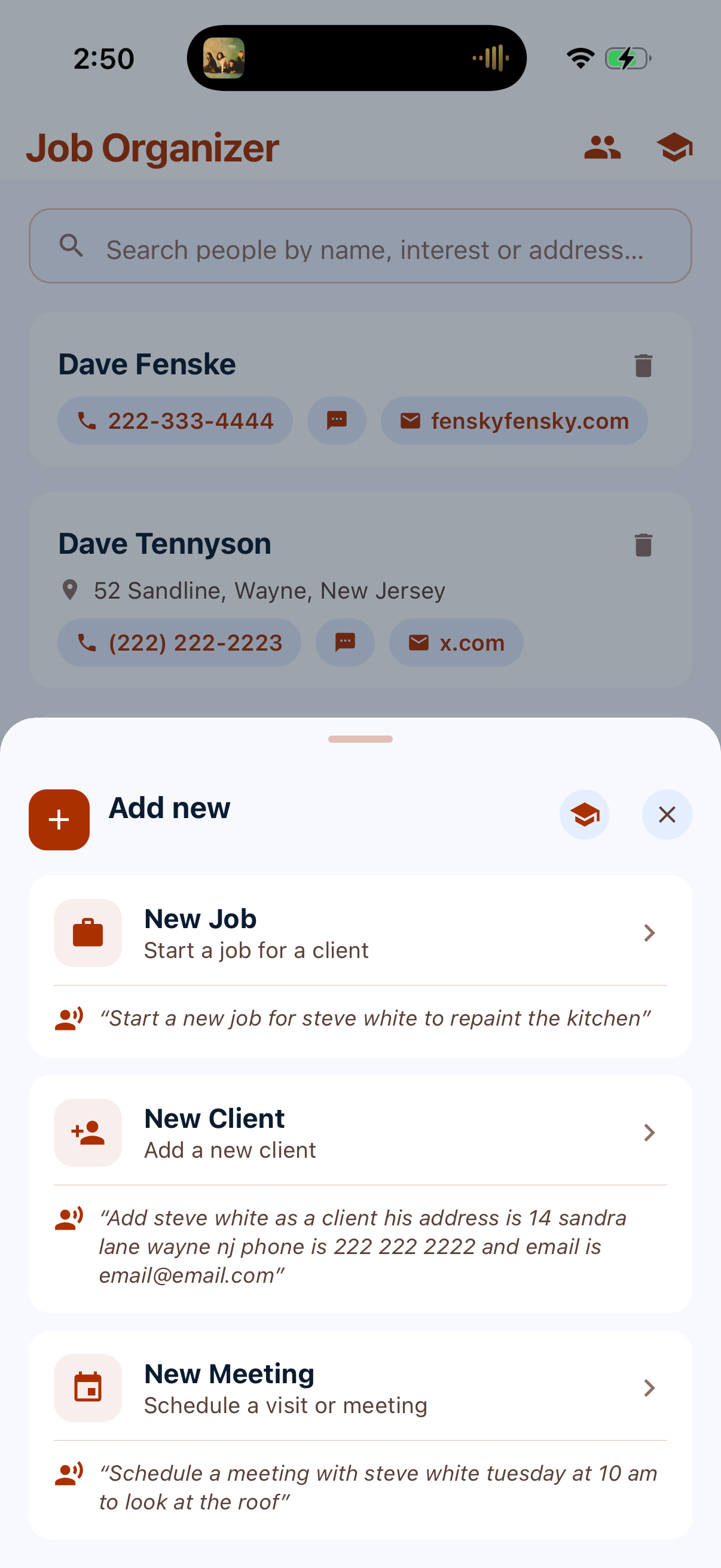
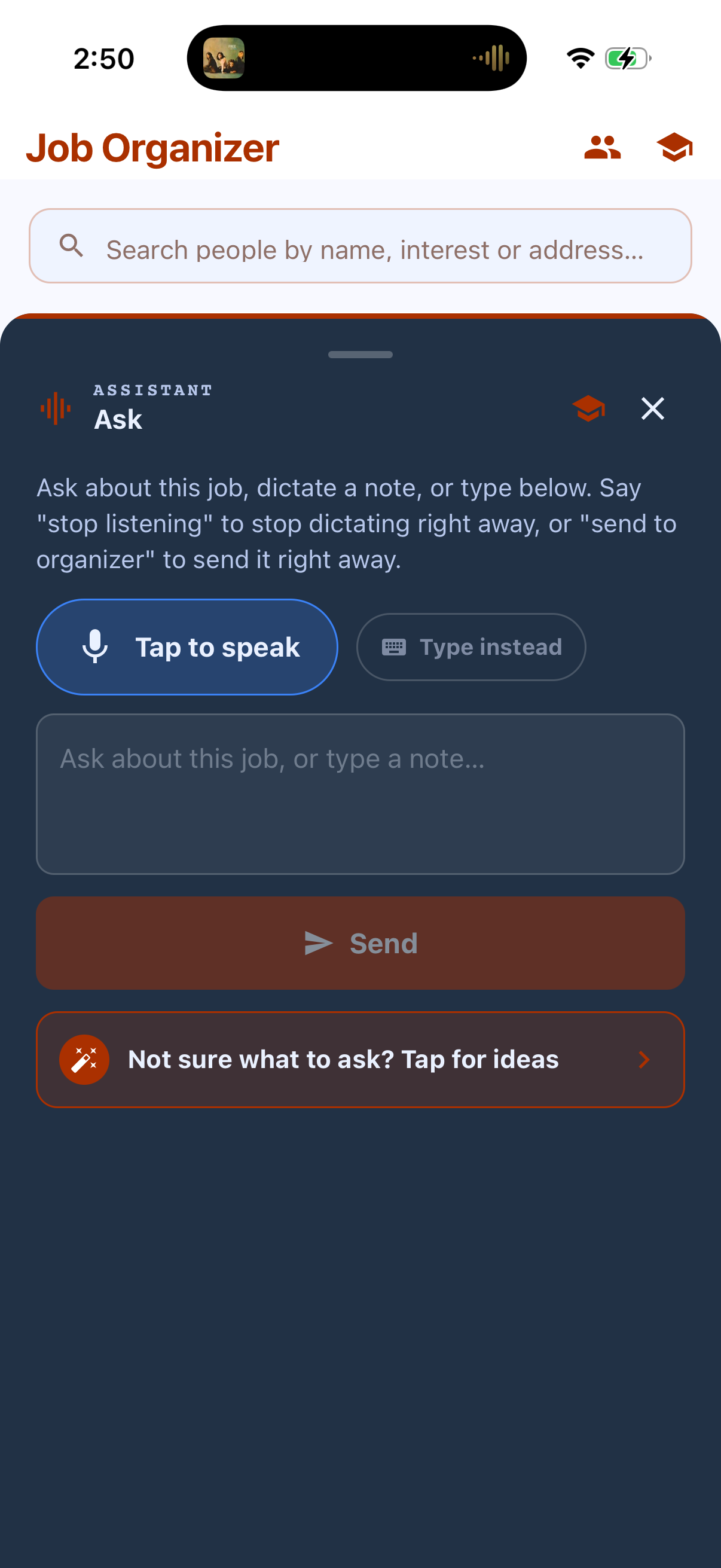
There are no menus to learn. You say what you want, in one breath, the way you'd say it to a person — and it fills in the forms. One sentence can do several jobs at once.
“Add Steve White as a client, his address is 14 Sandra Lane, Wayne NJ, phone is 222‑222‑2222, email is email@email.com — and schedule an estimate April 4th.”
“Start a new job for Steve White to repaint the kitchen.”
“Change Steve White's phone number to 555‑0134.”
“Schedule a meeting with Steve White Tuesday at 10am to look at the roof.”
Neither had our contractor. It took a little work to get him to stop barking keywords at it and just talk — and once he did, he loved it. Most people have it by the second house. And every voice screen has a Type instead button, so you're never stuck.
Say it. Draw it.
We only build what actually gets the job done — nothing you don't need.
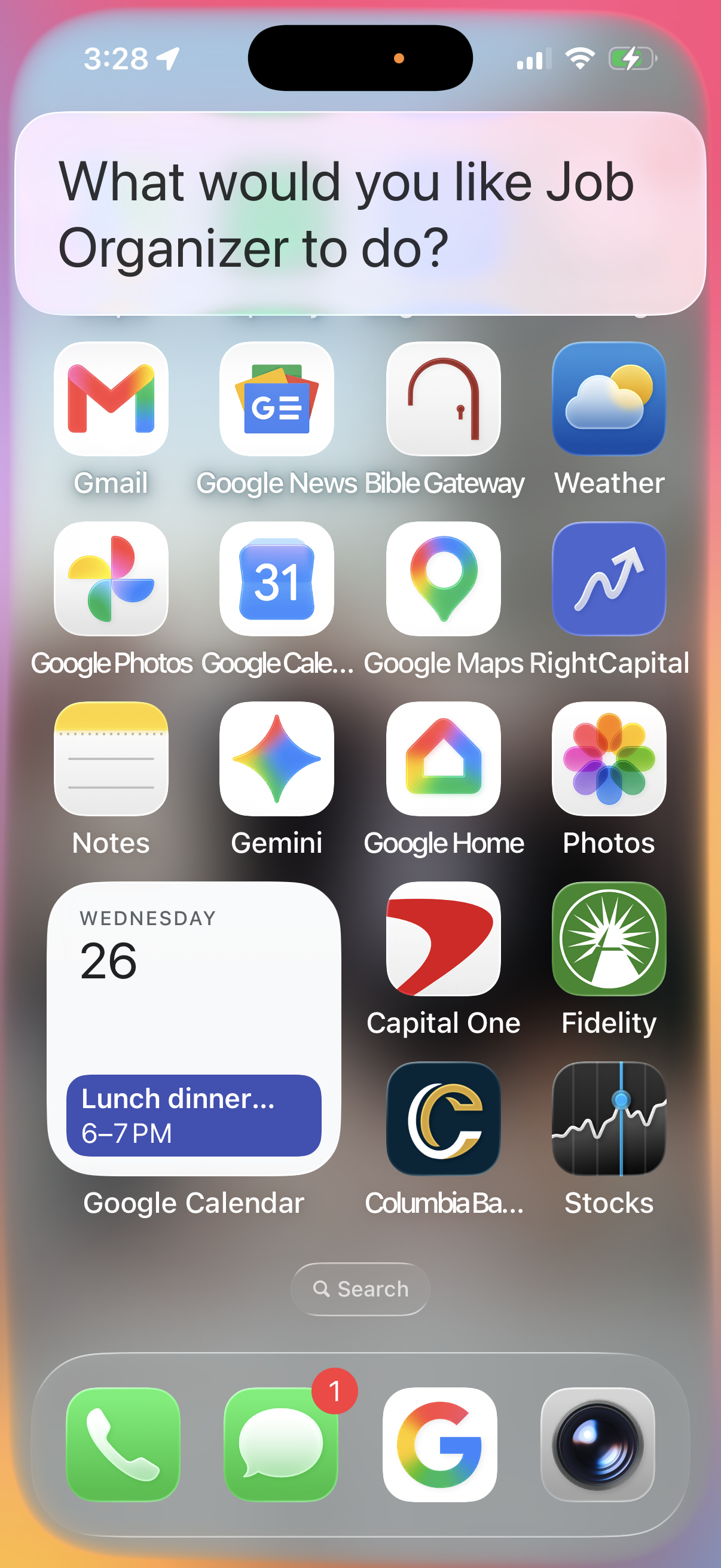
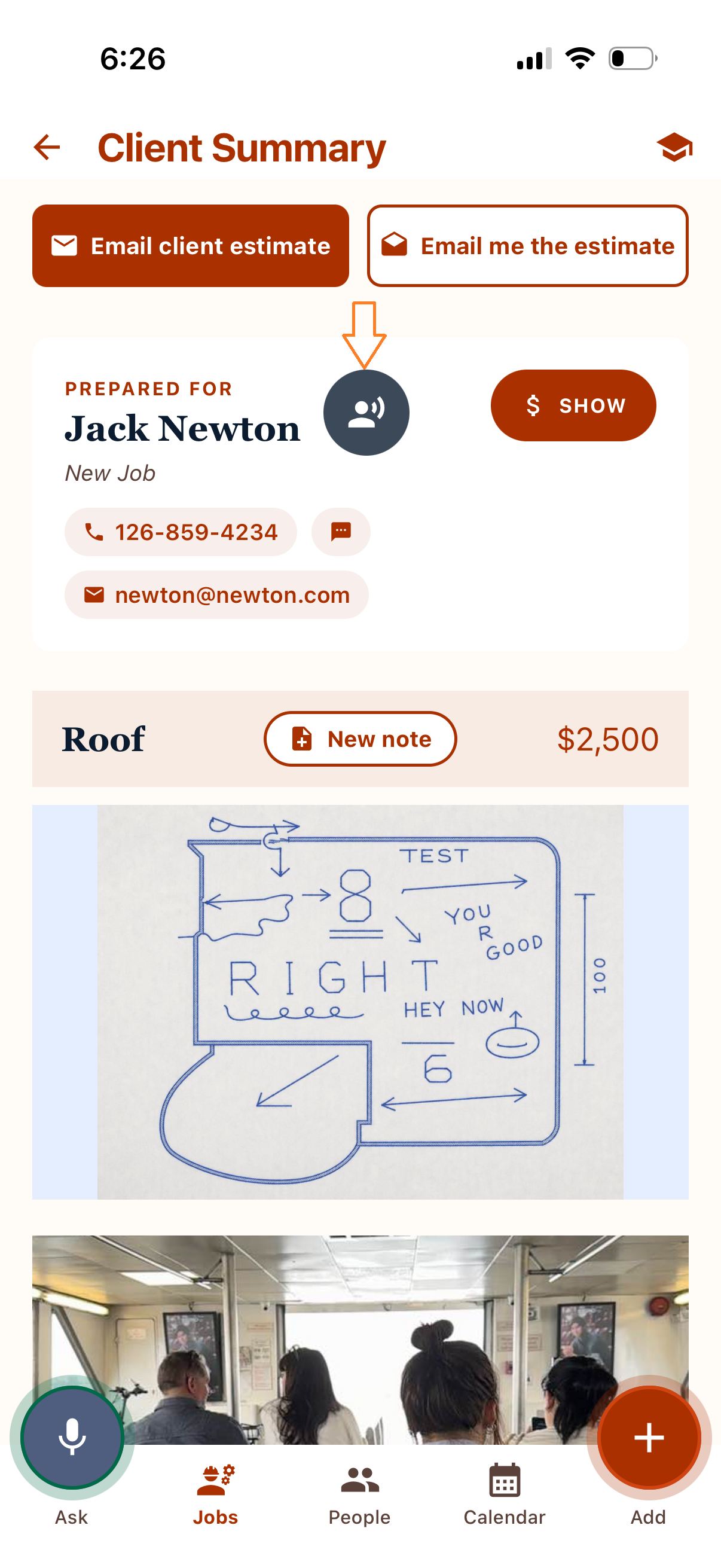
Something comes to mind between jobs? Say “Hey Siri, ask Job Organizer,” then just answer back like you're asking a person, not a computer — add a client, start a job, leave a note, ask about one already in progress. Virtually everything you'd normally tap and type into Job Organizer, now by voice. It lands ready to send in the same Ask you already use, so it's one glance to confirm when you're parked — nothing to dig through on the road.
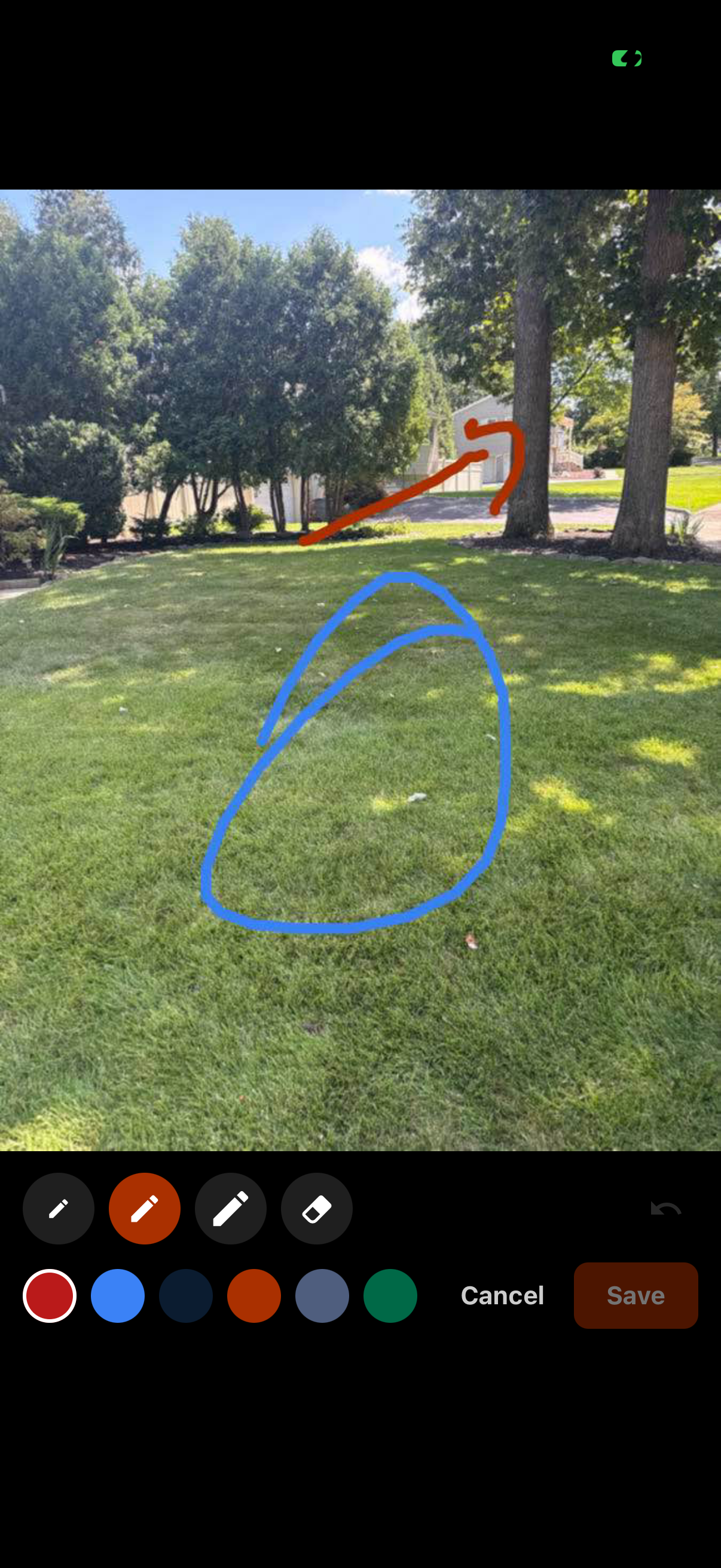
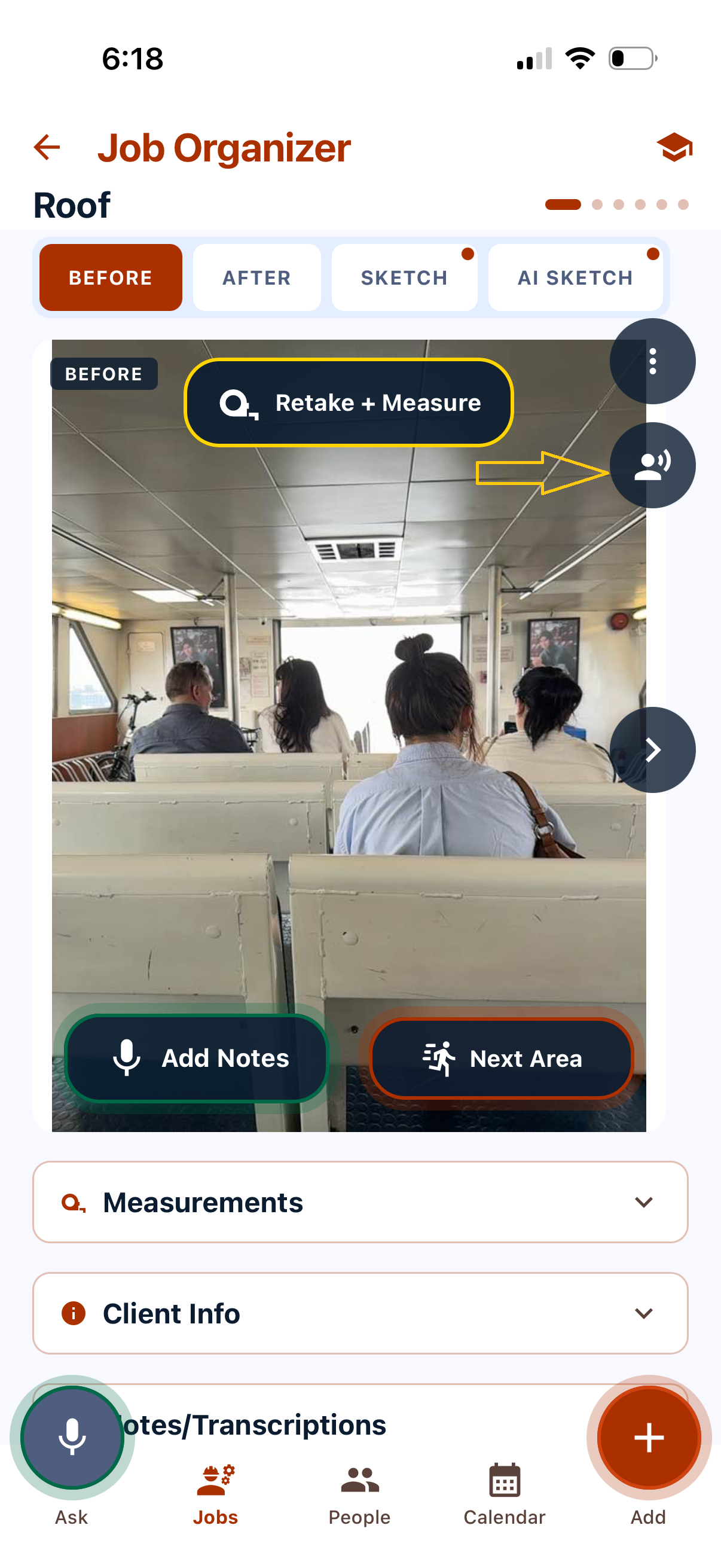
Circle the spot. Mark the line. Point at the exact thing you mean, on the actual picture, so nobody has to guess what “by the tree” means.
The heart of it
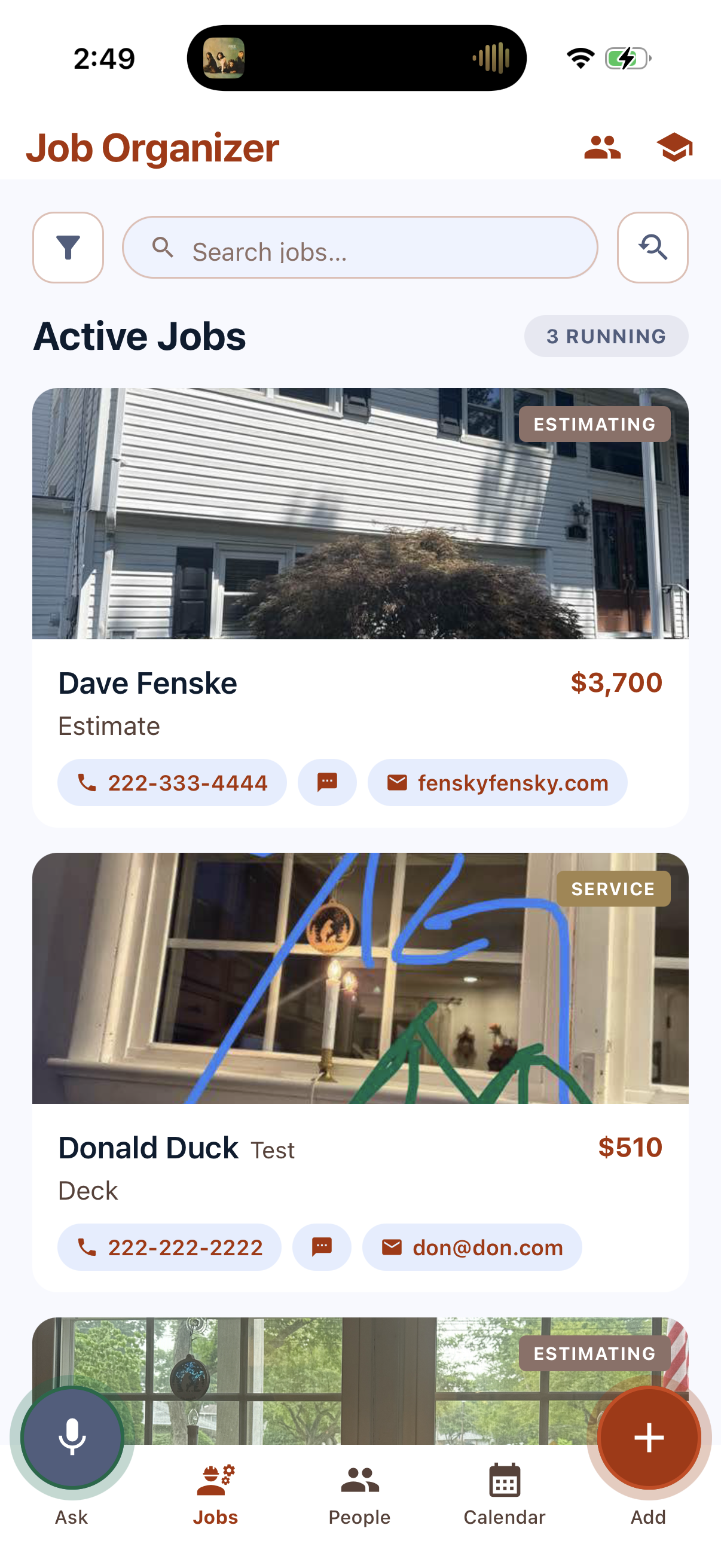
One area at a time, the same way you already do it. Photo, talk, move on.
Stand in the room and shoot it. That photo becomes the anchor for everything you say next. Name the area once — “Kitchen,” “Front elevation” — and every new photo stays in that area until you tap Next Area.
Prev and Next Photo live at the top, so you can jump back and slot in a shot you forgot. Got the area name wrong? Tap it and fix it.
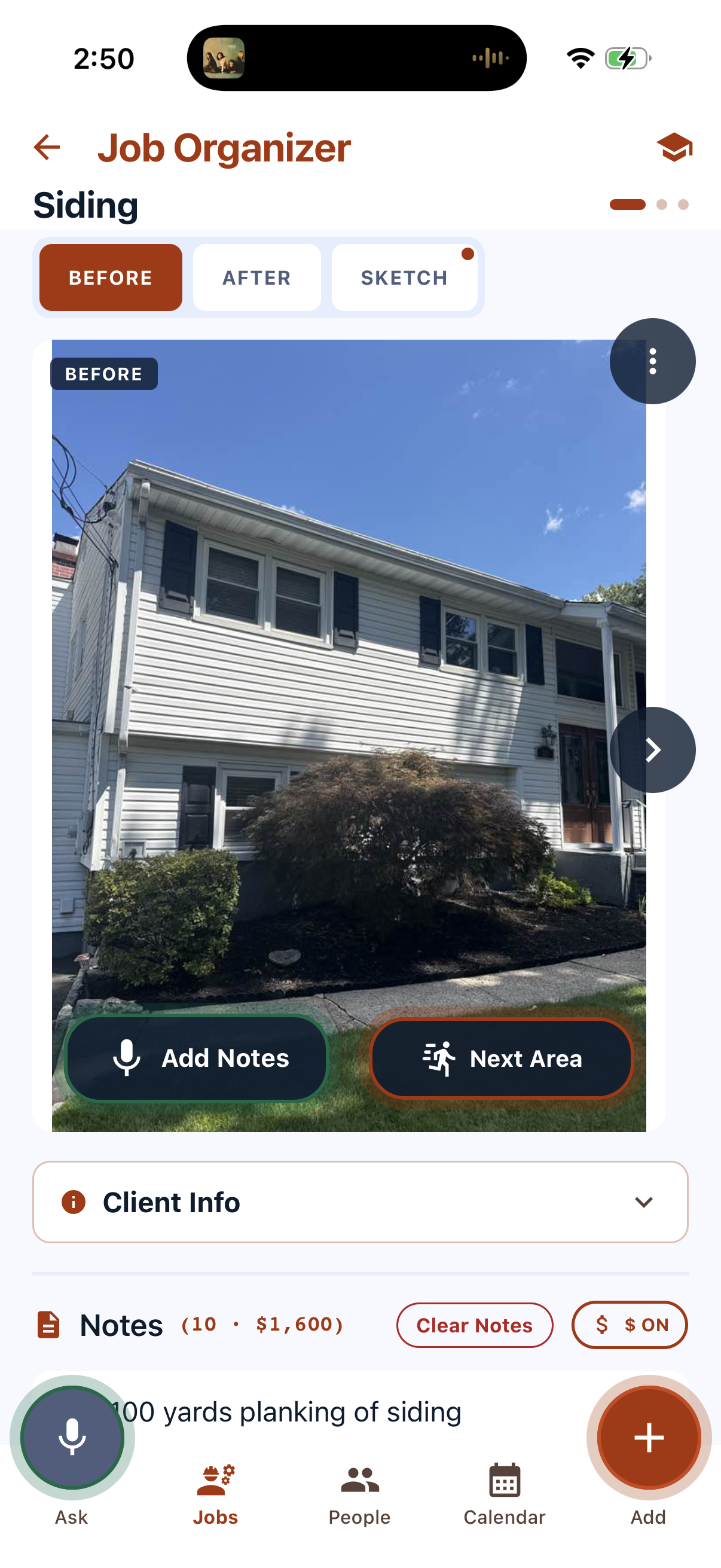
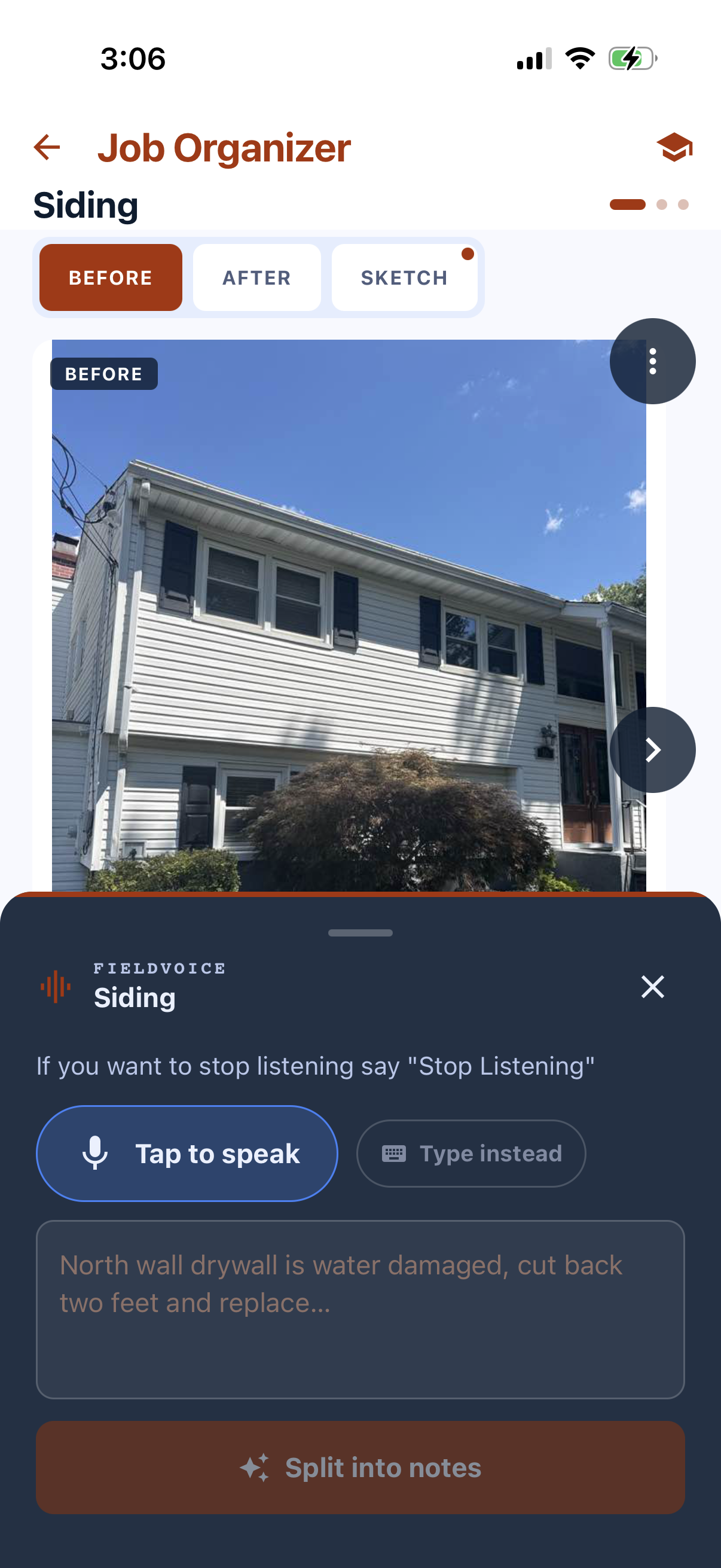
Talk the way you'd talk to somebody standing next to you. Measurements, damage, what needs doing, what it'll run. Ramble. Backtrack. It's fine.
When you stop, the AI breaks that ramble into separate, sensible notes in the background. Say “end note” any time you want to force a clean break right there.
Mention a price and it lands on the note. Don't mention one and the note stays a plain note. Nothing is required, and nothing is calculated behind your back.
Every note is editable by hand afterwards — tap it, change the wording, add or pull a number. Flip $ ON off and the whole estimate reads as a scope of work with no dollars anywhere.
While you talk, it also tags the job — windows, siding, hardwood-floors — so you can find this house again in six months by what you did, not by when you did it.
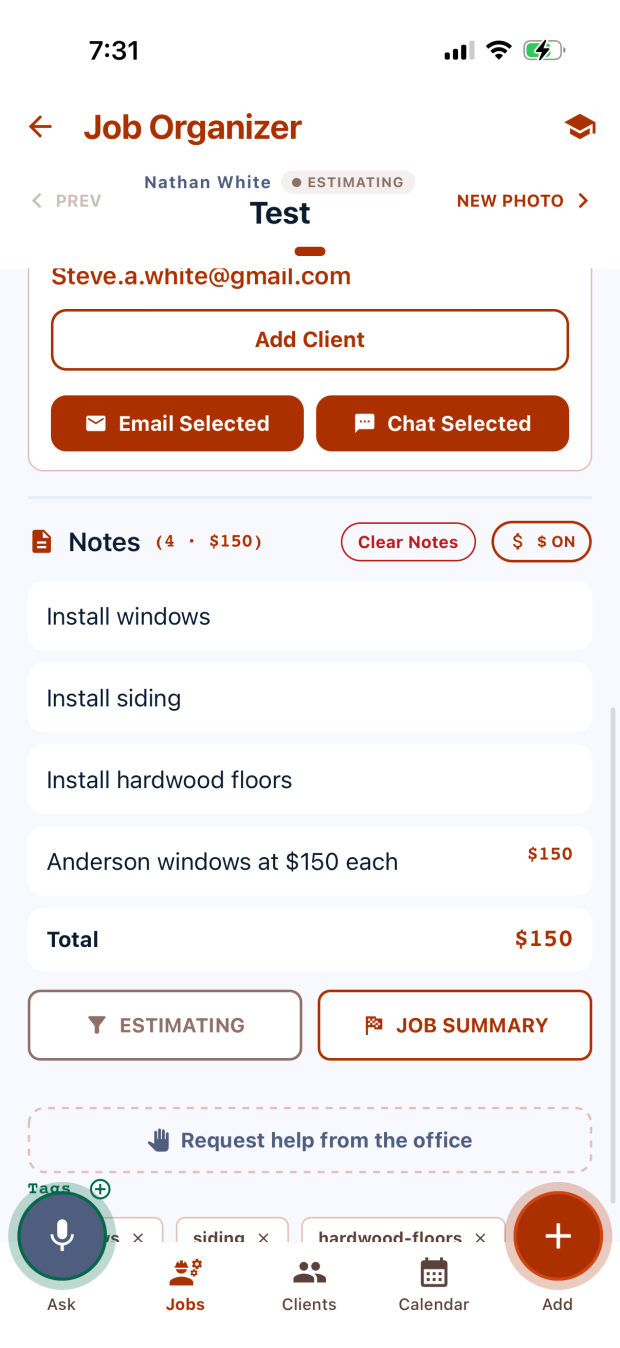
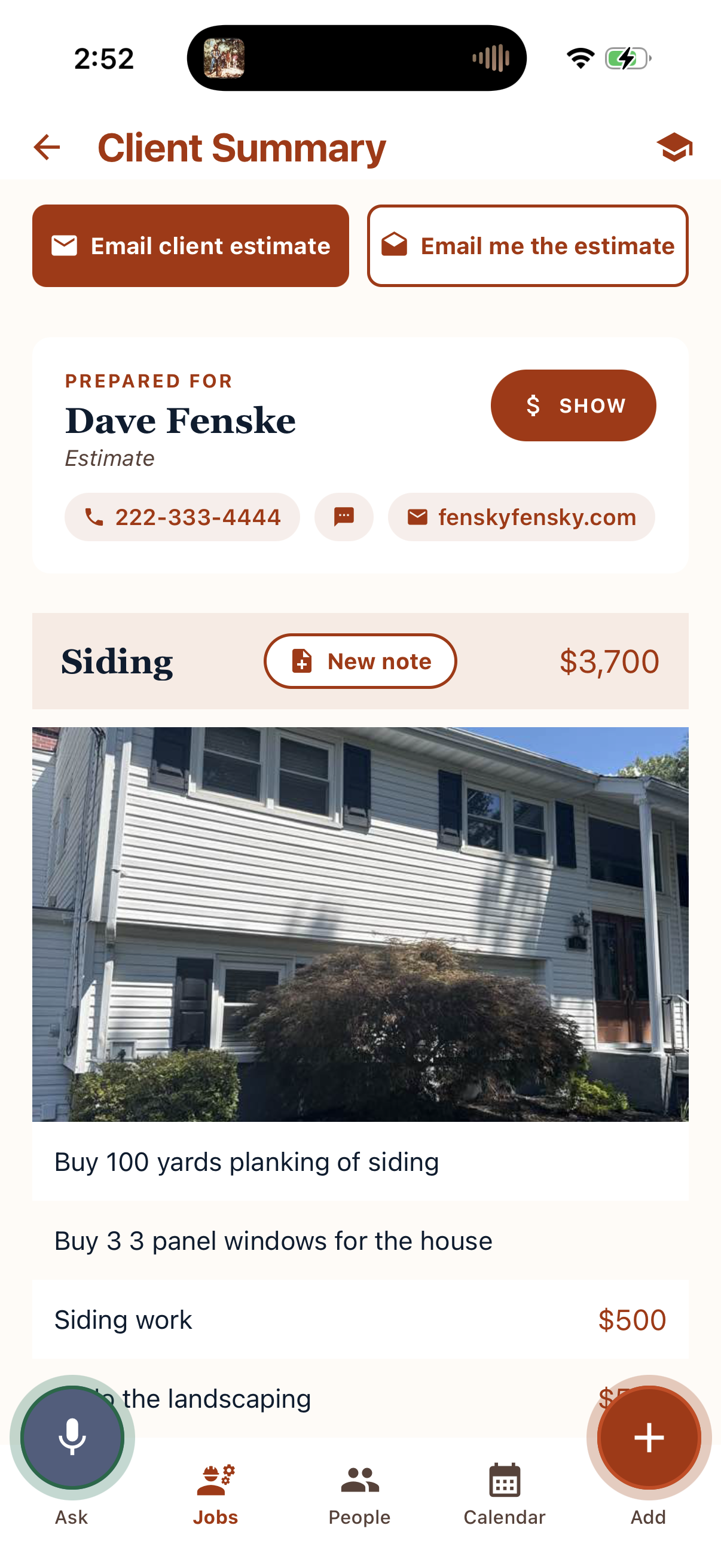
Tap finish and you land on a Client Summary: every area, its photo, its notes, and the grand total, set in clean type that reads like a document instead of an app. Hand them the phone and walk it with them.
Then email the client or email yourself. It opens your own mail app, so you can add a line, cc your partner, or copy the office before it goes.
On the summary screen, Job Organizer looks back at finished jobs that resemble this one — matched on what's actually in the photos and the tags it generated — and quietly asks whether you meant to leave something out. The trim you always forget. The permit line. The haul-away.
Take the suggestion, ignore it, or tell it never to suggest that one again. It's a second set of eyes from the version of you that did this last month.
Never miss what they said
A running conversation with the client, captured while you work — not scribbled on the back of an invoice.
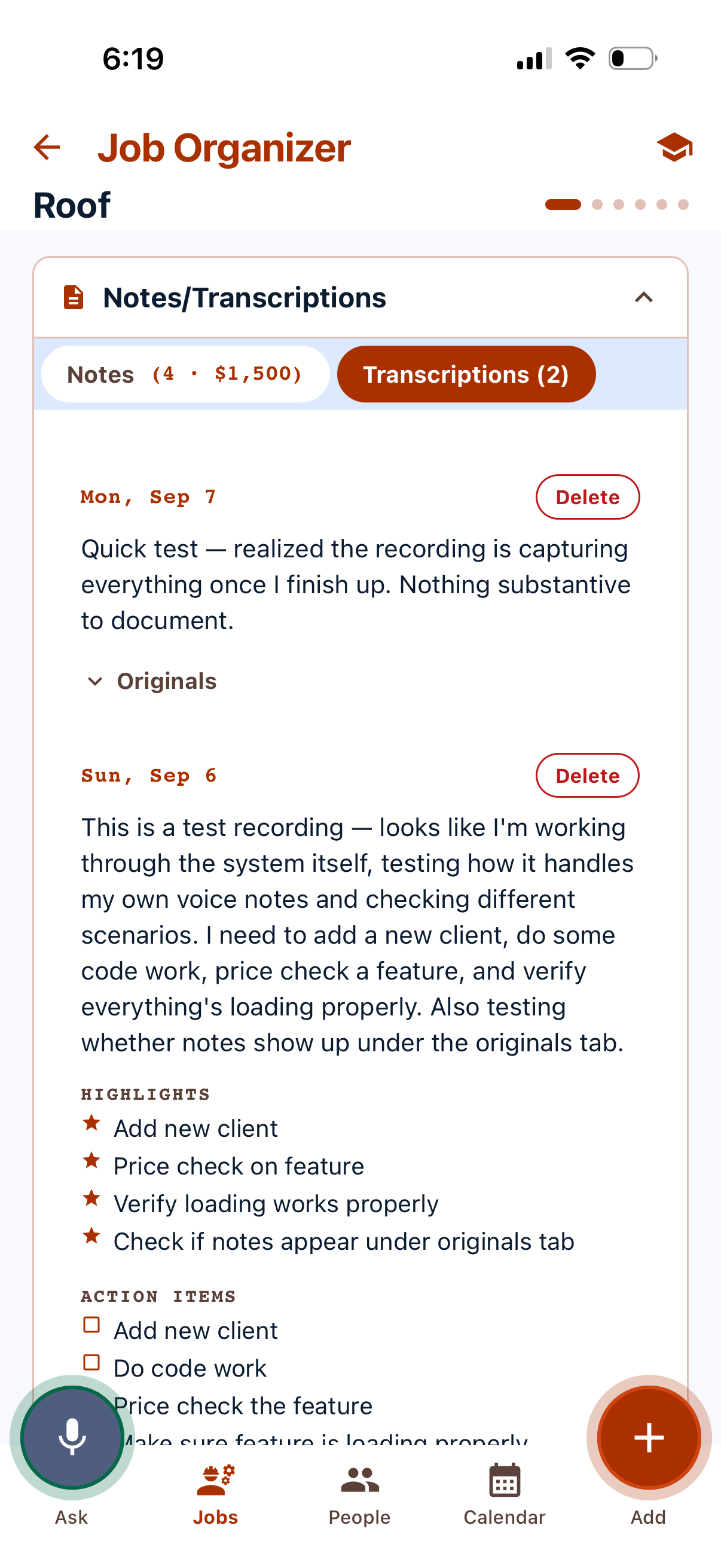
The same Record button you already use for field notes doubles as a conversation recorder — tap it while you're walking the job with the client, and it keeps running in the background while you move between areas.
Stop recording and it's summarized automatically — key highlights and a checklist of action items, filed under the job by date. The full original transcript is always one tap away if you need the exact wording.
Sitting with the customer going over the job summary, hit record so you don't miss anything — and can spend that time looking at them, not writing everything down.
What's in the box
No modules, no add-ons, no tiers. This is the whole app.
Photos group themselves under the area you're standing in. As many shots per area as the job needs.
Keep the before shot and the how-it-looks-now shot side by side on the same area. One toggle to flip.
When a photo won't explain it, draw it. Sketches live right beside the photos, in the same area.
The AI tags each job from what you said and what's in the picture, so search actually finds things.
Search and filter by client, address, status or tag. The photo you need is two taps in, not forty minutes of scrolling.
One switch turns every dollar figure on or off — for the client's copy, or for a scope-only walkthrough.
The estimate opens in your own mail app so you can edit it, add people, or send it from the address they know.
Add employees under your company, each with their own login, all working the same client list.
The rest of the day
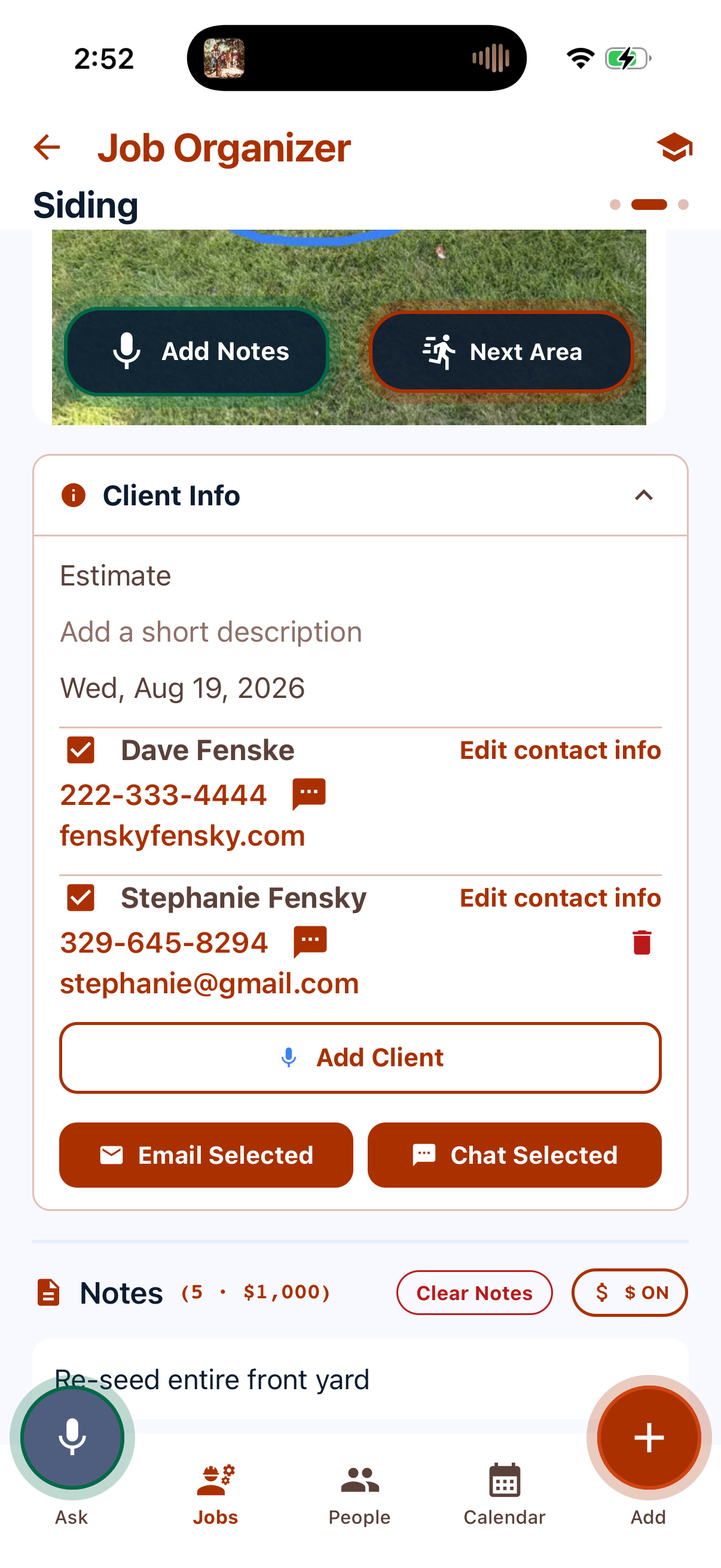
Name, address, phone, email — tap any of them to call, text, or write. Add and change everything by voice: “change Steve White's phone number to…”
And it keeps what matters between jobs. Tell it “she doesn't like the crew starting before eight” and it remembers, right there on the client, next time you pull them up.
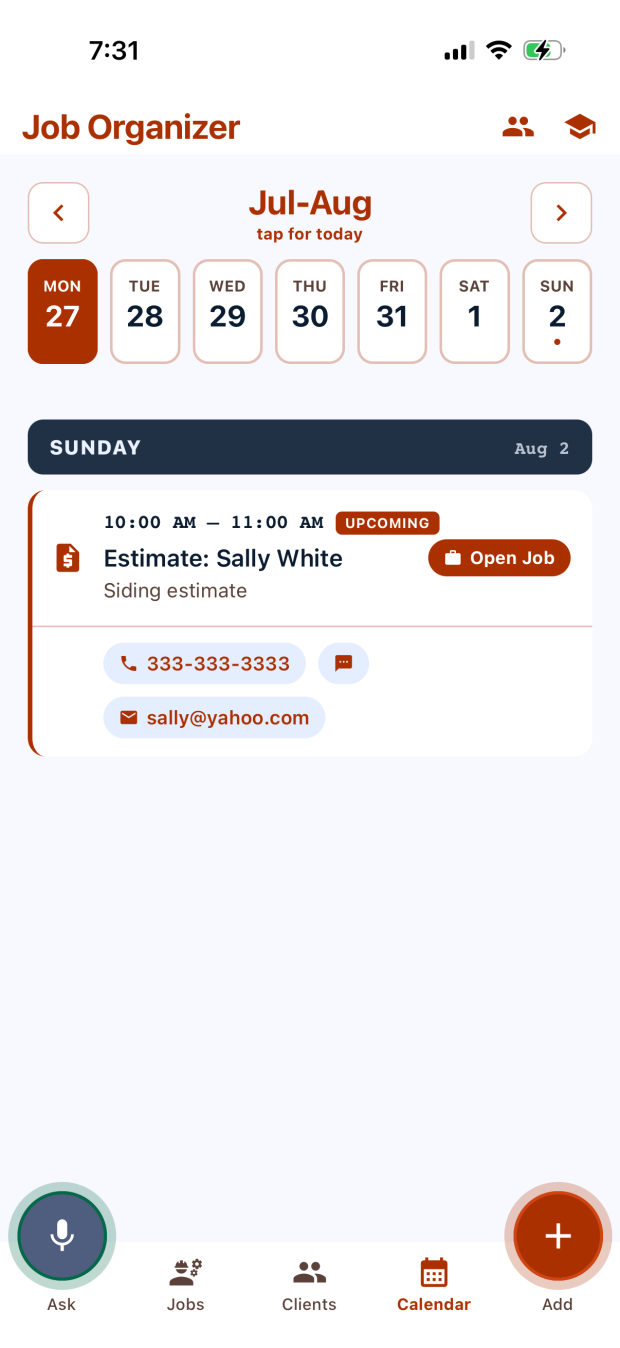
Your week across the top, the day's visits underneath. Each one carries the client's number and email so you can say you're running late without leaving the screen.
Open Job takes you straight from the appointment into the walkthrough. Book it out loud when you make the call.
Straight answers
The point of this app is that it's small. Here's what we left out on purpose.
In progress
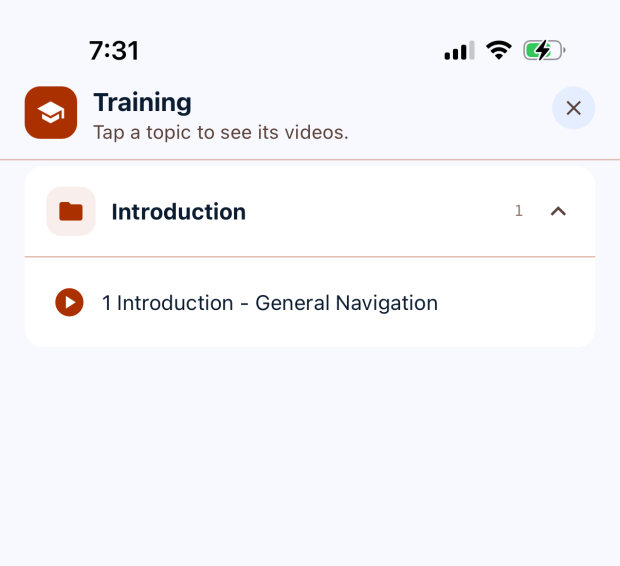
A library of one-topic-at-a-time videos, reachable from the cap icon on every screen — so a new hire can learn the part they're stuck on without calling you. The first one is recorded; we're holding the rest until our testers tell us which parts actually confuse people.
Who we are
Agent Pro Apps builds small, focused tools for people who work with their hands. We started with Job Organizer because estimating and managing jobs shouldn't be this hard for a small contractor running the whole show solo.

Software · 30 years in software development
The tech guy. Builds the thing. Spent this project learning that the fastest way to lose a contractor is a screen with more than one decision on it.

Contracting · 35 years running his own business
Built and ran his own successful contracting business for 35 years, carried the clipboard the whole time, and rejected every version of this app that asked him to do one thing he wouldn't do on a real job.
“I know it isn't super sexy. We didn't want sexy. We wanted straightforward, for people who are just trying to get the job done.”
Steve White, Agent Pro Apps
Get in touch
Job Organizer is in field testing with working contractors right now. If you run a small shop and you'd like a look, tell us what you do and we'll be in touch.